Faraz PACS& Healthcare Solutions

For hospitals and scan centres

Your scans stay here. View them from anywhere.

Faraz PACS is a medical image system that runs on your Windows computer. With a secure connection, approved staff can view scans and reports from another location.
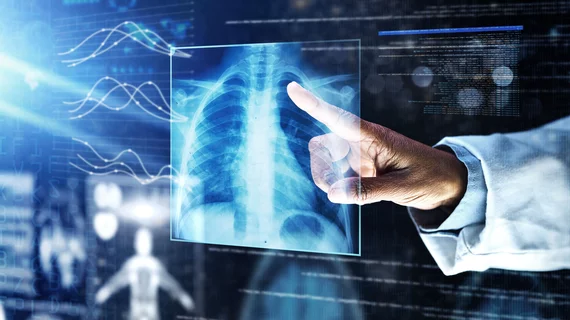
Healthcare professional viewing a chest X-ray on a digital imaging screen
CT MRI X-Ray USG

Products & Services

Tools to store, view, and print scans, plus help setting up your system.

Faraz PACS Server

Store and manage scans on a Windows computer. View them on a desktop, tablet, or phone.

  • Receive and find scans from scanners
  • Web viewer for desktop and mobile
  • Connect other DICOM viewers
  • Give each user the right access
  • Share scans and view them remotely
See PACS features

Faraz DICOM Print Server

Send scans from your scanner and print them on a regular Epson, HP, or Canon printer.

  • Works with CT, MRI, X-Ray, and USG
  • Print on paper or photo paper
  • Choose how many images fit on a page
  • Add your centre name and logo
  • Check prints waiting in the queue
See print features

IT & PACS Support

Get help installing PACS, connecting scanners, setting up viewers, and fixing network problems.

  • Install PACS and image viewers
  • Set up scanner network details
  • Set up OsiriX MD and other viewers
  • Test and fix scanner connections
  • Get help remotely or at your centre
See support options

Keep your scans at your centre

Faraz PACS runs on your Windows computer and keeps your main scan collection at your centre. With a secure connection, approved staff can view scans and write reports from another location.

Scans stored at your centre Your main scan collection stays on your Windows computer and its storage
Receive scans from your machines Receive and store scans from CT, MRI, X-Ray, and USG machines
Find older scans Search for and send earlier scans to connected machines
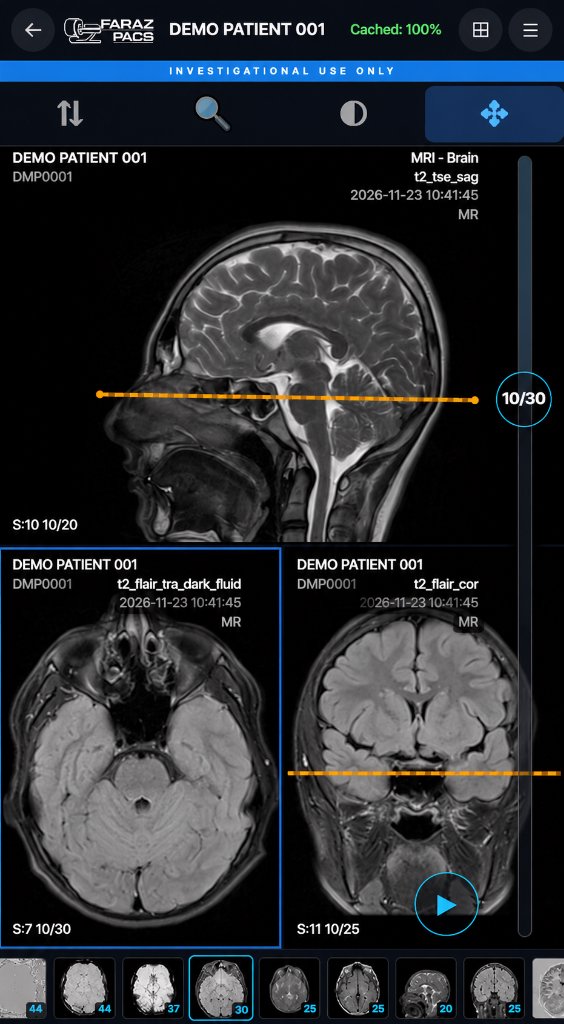
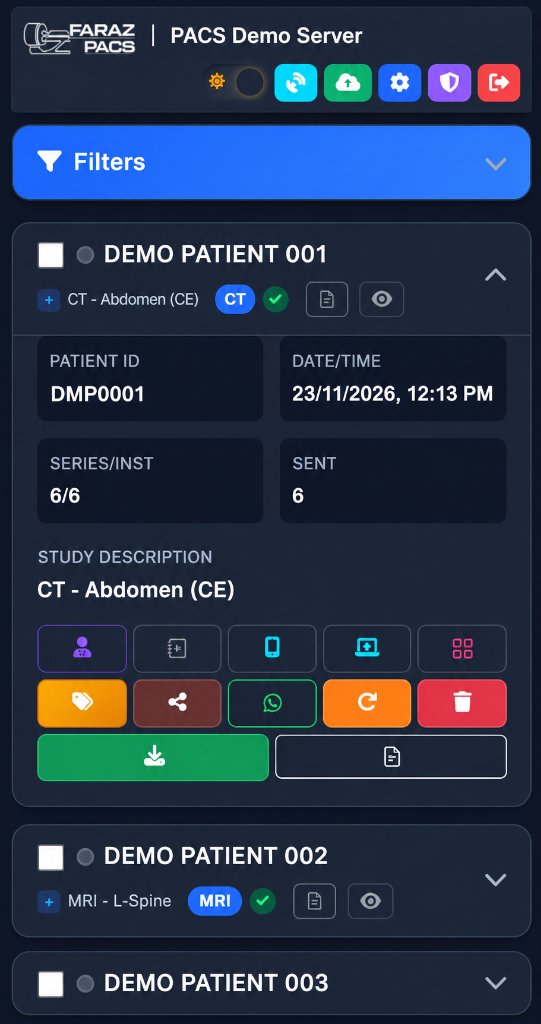
View on a phone or tablet Open the web viewer on iPhone, Android, or iPad. No app needed
View from another location Approved staff can view scans and reports when secure internet access is set up
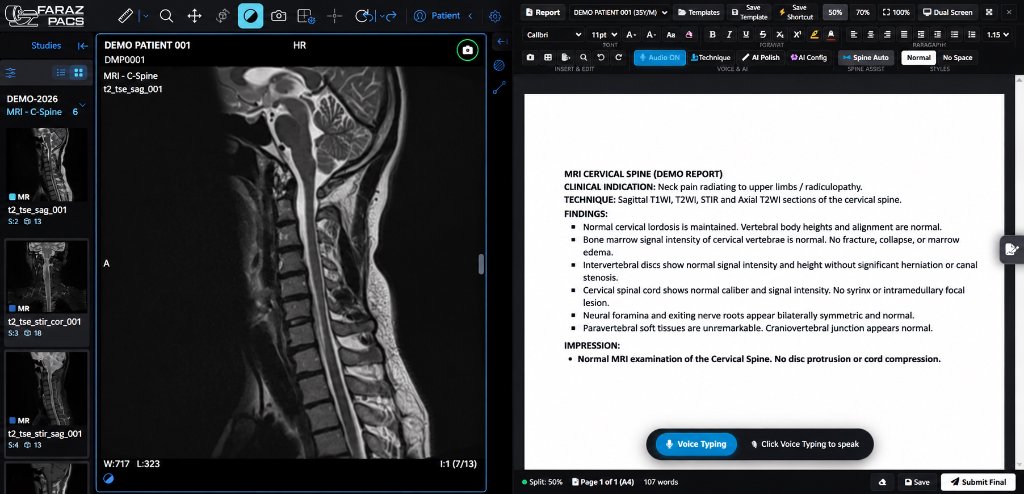
View and write reports on desktop View scans and write reports with voice typing and templates
Connect other scan viewers Connect compatible medical image viewers using DICOMweb
Set access for each person Give admins, radiologists, technicians, and doctors the access they need
Admin control panel Manage staff, connected viewers, who is logged in, reports, and centre details
Share scans Send a scan link to a patient or referring doctor
Send scans where they are needed Forward incoming scans to selected doctors or backup servers
Support for multiple centres View scans from several hospital branches in one place
Optional cloud backup Set up a separate scan backup in cloud storage if you choose
Reports and voice typing Write reports with Word templates and voice typing tools
Runs on Windows 10 or 11 Use a regular Windows computer. No Linux server needed

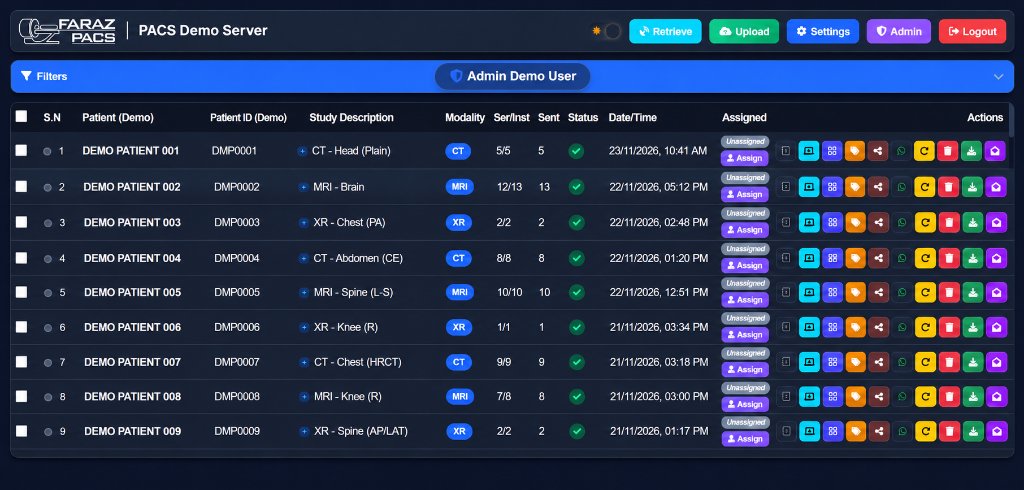
See how it looks

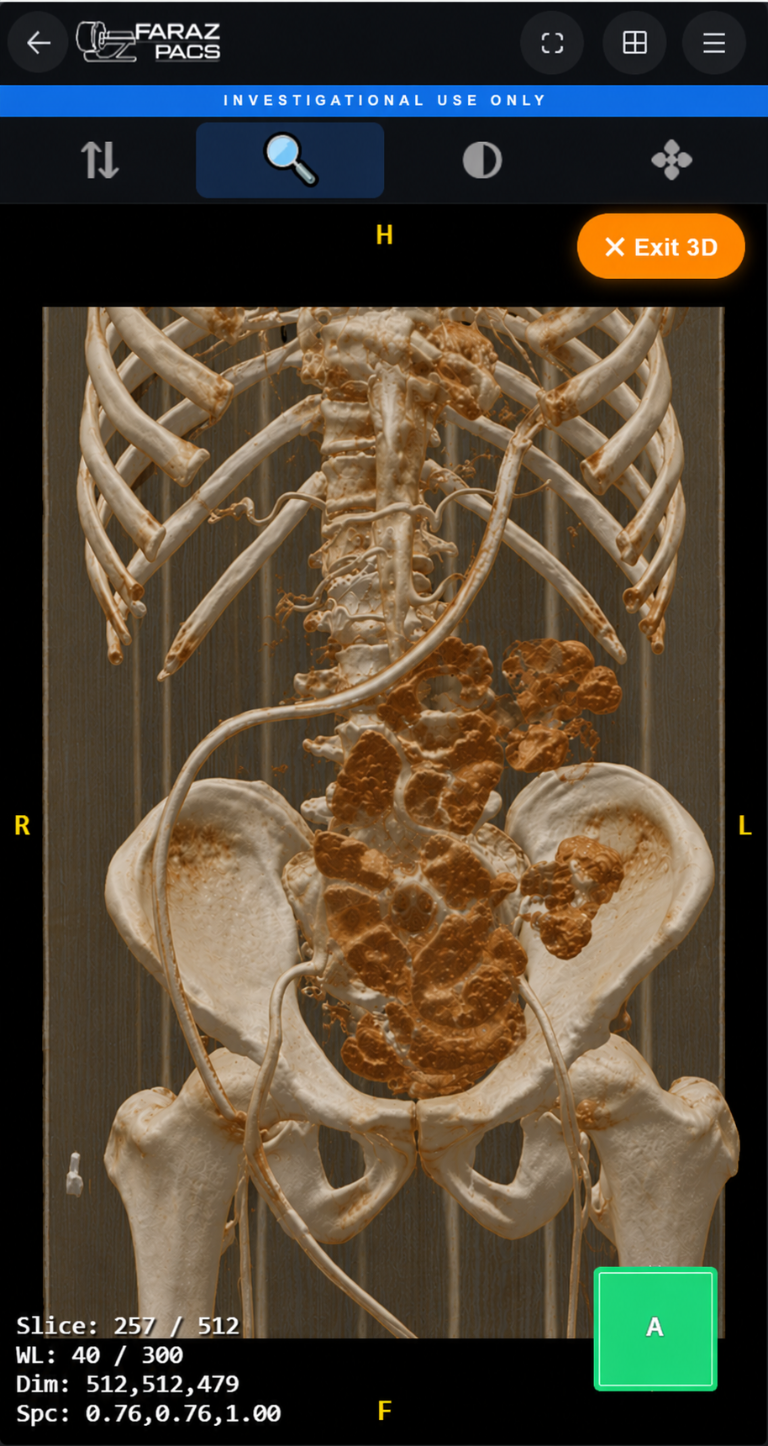
These are real screens. The patient details shown are sample data.

Real software • Sample data. No real patient records are shown.

Print scans on a regular printer

Send scans from your imaging machine and print them on a regular colour printer. You do not need a medical film printer.

CT / MRI / X-Ray Scanner sends the images
Faraz Print Server Prepares the print
Epson / HP / Canon Prints on paper
Works with imaging machines Your CT, MRI, or X-Ray machine can send print jobs to the server
Choose a page layout Print one or more images on a page, with patient details
Add your centre details Print your hospital name, logo, and details on each page
Use photo paper Print on glossy photo paper or regular paper
Check print jobs See which jobs are printing, waiting, or finished
Runs on Windows 10 or 11 Runs in the background on your Windows computer
Use the printer you already have

Print on A4, A3, or glossy photo paper with a regular inkjet or laser printer instead of buying a medical film printer.

Sarfaraz Rahman

Radiology Technologist and PACS Developer

I have worked with MRI, CT, and X-Ray machines. I saw smaller hospitals and scan centres struggle to find a PACS that fits their budget and their daily work.

I built Faraz PACS so centres can keep scans on their own Windows computer. With a secure connection, approved staff can also view scans and write reports from another location.

I want smaller clinics and hospitals in every city to have tools that work for them. Faraz PACS can also support larger hospital groups with multiple centres. I also help connect imaging machines, set up viewers, and fix PACS problems.

Sarfaraz Rahman, radiology technologist and founder of Faraz PACS

Help setting up your system

Get help installing PACS, connecting your imaging machines and printers, and fixing network problems. Support is available remotely or at your centre.

Install PACS Set up Faraz PACS on your Windows computer
Connect your imaging machine Set up CT, MRI, X-Ray, or USG to send and receive scans
Set up network details Configure the names and network numbers DICOM devices use to connect
Test the connection Check that your imaging machine can connect to PACS
Set up an image viewer Get help setting up OsiriX MD, RadiAnt, Horos, or another viewer
Set up a reporting computer Prepare a computer for doctors to view scans and write reports
Set up scan printing Connect your scanner to print scans on paper or photo paper
Fix network problems Help with firewalls, routers, switches, and connection problems
Fix scan transfer problems Find out why scans are not sending or arriving
Remote help starts only after you approve an AnyDesk or TeamViewer session.

Have a question?

Ask us about Faraz PACS, scan printing, or help setting up your system.

Done!